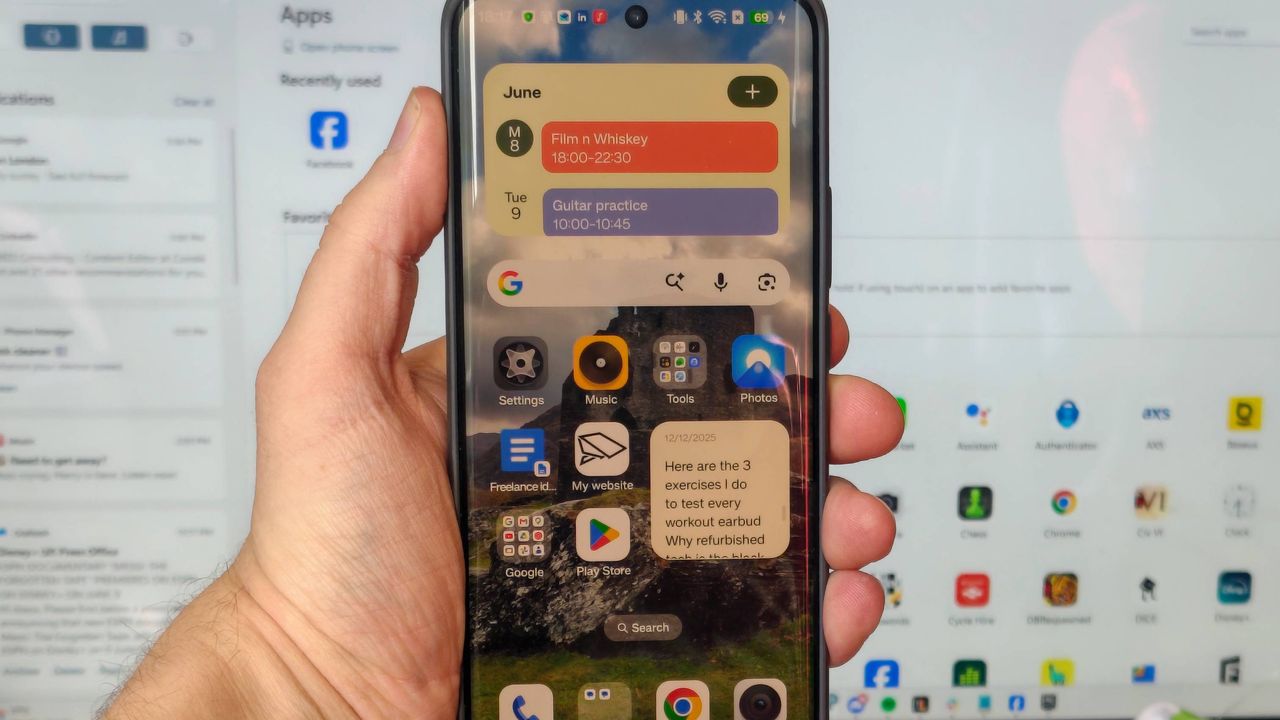
I tried Android's underrated desktop app, and it's transformed the way I work
For the longest time, I thought that, despite their annoyances, iPhones had something big over the best Android phones: PC connectivity. I'd always seen iPhone and Mac-owning friends quickly send files between the two, and assumed it was an Apple-exclusive feature.
As it turns out, this isn't true. Android users can use a Windows app that brings loads of really useful features — and it's really underutilized, which is why a tech journalist like me hadn't heard of it.
This software is called Phone Link, and we've got a guide on how to connect your Android phone to a Windows PC using Phone Link elsewhere on TechRadar. I downloaded it about a year ago, largely out of duty to test every tool, appliance, and gadget I could get my hands on. I was expecting it to last a weekend.
A year on, though, and Phone Link has become such a useful part of my workflow that I'd forgotten it's something not everyone's heard about. It's such a natural part of the way I use my phone and computer that I'd totally forgotten it was something I initially downloaded to test!
Well, no longer: TechRadar has let me wax lyrical about Phone Link, and I'm going to give the tool its time in the sun.
Sending photos from phone to PC
For the most part, whenever I want to connect my phone to my PC, it's to move pictures between the two devices.
As a smartphone journalist, you can understand that I'm sending snaps from my phone to my computer a lot. Sometimes it's camera samples from a mobile I'm testing that I want to upload for a review. Occasionally, I want to back up pictures I really like before I wipe a phone and send it back to the company.
Sign up for breaking news, reviews, opinion, top tech deals, and more.
The most frequent use case, though, is to transfer to my PC pictures I've taken on one phone, of another. I use smartphones to do review photography, and it's a great way to test out a phone I'm reviewing.
Before Phone Link, I'd have to use a USB cable to connect my phone to my computer — approving the connection on my Android's end, because they're always annoyingly suspicious — and drag and drop all the relevant pictures into a folder on my computer. It's not an especially onerous process — it's a lot quicker than when I used to use Google Drive to transfer pictures, for instance — but it takes a little while of fiddling with my phone and digging out a cable to work.
Not so with Phone Link. Its Photos tab shows a big old list of all the pictures you've taken recently, giving you options to save them to your PC, open them in an editing app, and share them with others.
These pictures appear as soon as you take them, as long as your phone is on the same Wi-Fi as your computer. I've become used to taking photos in one room of my home, and entering my office, to see them linked up on Phone Link, ready for an edit. When I've got PC notifications turned on, I can even hear the 'bong' of my computer telling me they've arrived.
Phone Link also lets you browse the contents of your mobile in the Files tab, where it appears in the Devices and drives list alongside any cloud or local drives you have. I don't use my phone to handle non-photo files, but it's a nice touch that'd be really useful if I were in another line of work.
Apps on my PC
Ostensibly, one of the main uses for Phone Link is that it lets you open your smartphone apps on your computer. Its Apps page shows you a massive list of every one you have installed on your mobile, and clicking on it opens it in a window.
This doesn't override anything you have going on on your phone; if you're using it as a second screen to watch a YouTube video or act as a music player (one of many ways you can repurpose an old Android phone), the app will open in your PC window alone.
When I first started Phone Link, I tried using it for everything, but often bounced straight off. In many circumstances, using a smartphone is simply more intuitive than using a mouse and keyboard, given that phone apps are designed for thumbs. But over time, I've found a few uses of Phone Link's app windows that are genuinely handy.
As mentioned, one of those uses is as a music player. I can let Spotify hang around as a spare window, ready to skip tracks or change playlists when I want. It's also useful as a way to check apps that don't have PC equivalents, like Too Good To Go or Mubi Go, or ones that do have web functions but are easier on the phone, like my national health service's app.
There's one way that Phone Link saved me hours, though. When I used to work for a company that didn't let you use your work Gmail account on personal computers, Phone Link was my workaround to still see emails on my PC. This saved me ages each day; time that'd otherwise be taken up checking and replying to emails on my phone, or trying to get my decrepit work laptop to turn on.
Naturally, you can manage your calls and texts via Phone Link too. Personally, I don't think I've sent an SMS or made a non-WhatsApp voice call since the 2010s, but I'm sure there are some people who'd find this handy.
I also appreciate a notification list down the left side of Phone Link. This transforms it from being software solely for controlling your mobile to a veritable hub of information from your handset. I'll often keep it up on my second monitor; it makes good use of its space.
Controlling my phone from my computer
As mentioned, you can use your computer to control your mobile's apps via Phone Link, but you can also use it to change the actual settings of the device itself, which proves itself useful in an entirely different way.
Phone Link lets you monitor your phone status; I can see how it's connected to other devices, what battery it's on, and whether it's currently paired with Phone Link or not. I can even see a little representation of what my wallpaper currently is. All useful to a small degree, but the charge is the only one of those that's seriously useful.
What's more important are the status controls. You can toggle between vibrate, sound, and silent, turn Do Not Disturb on and off, and turn on the media player.
From a cursory mention of the tools, these might not sound that important, but I've found them really useful in a pinch. I'm constantly forgetting to mute my phone before I go on a video meeting, and a quick click of the Do Not Disturb button means I'm not going to have unexpected calls.
As a lazy person, I also love the fact that you can use Phone Link to play a sound from your phone; I'm always doing this instead of spending five seconds actually looking.
My one gripe with Phone Link is that I still need my phone with me to use it. When you start using it each session, you're required to unlock your device and approve the connection. But this is a small price to pay for the transformational effect it's had on my workflow — and I hope that you, too, consider giving it a try.
Follow TechRadar on Google News and add us as a preferred source to get our expert news, reviews, and opinion in your feeds.
Tom Bedford is a freelance contributor covering tech, entertainment and gaming. Beyond TechRadar, he has bylines on sites including GamesRadar, Digital Trends, Android Police, TechAdvisor, WhattoWatch and BGR. From 2019 to 2022 he was on the TechRadar team as the staff writer and then deputy editor for the mobile team.
View original source — TechRadar ↗
Related stories

Watch: Underground Drilling Begins On Malta’s Second Electricity Interconnector
Sonos boosts its upgrade program with savings of up to 30% on speakers, soundbars, and more
Work and study laptop deals: I found the HP OmniBook 3, Asus Vivobook 14, and Dell 15 under $600 right now
